Nebius account onboarding with CTL
Use this guide when your hosted plan or BYOA plan deploys to Nebius.
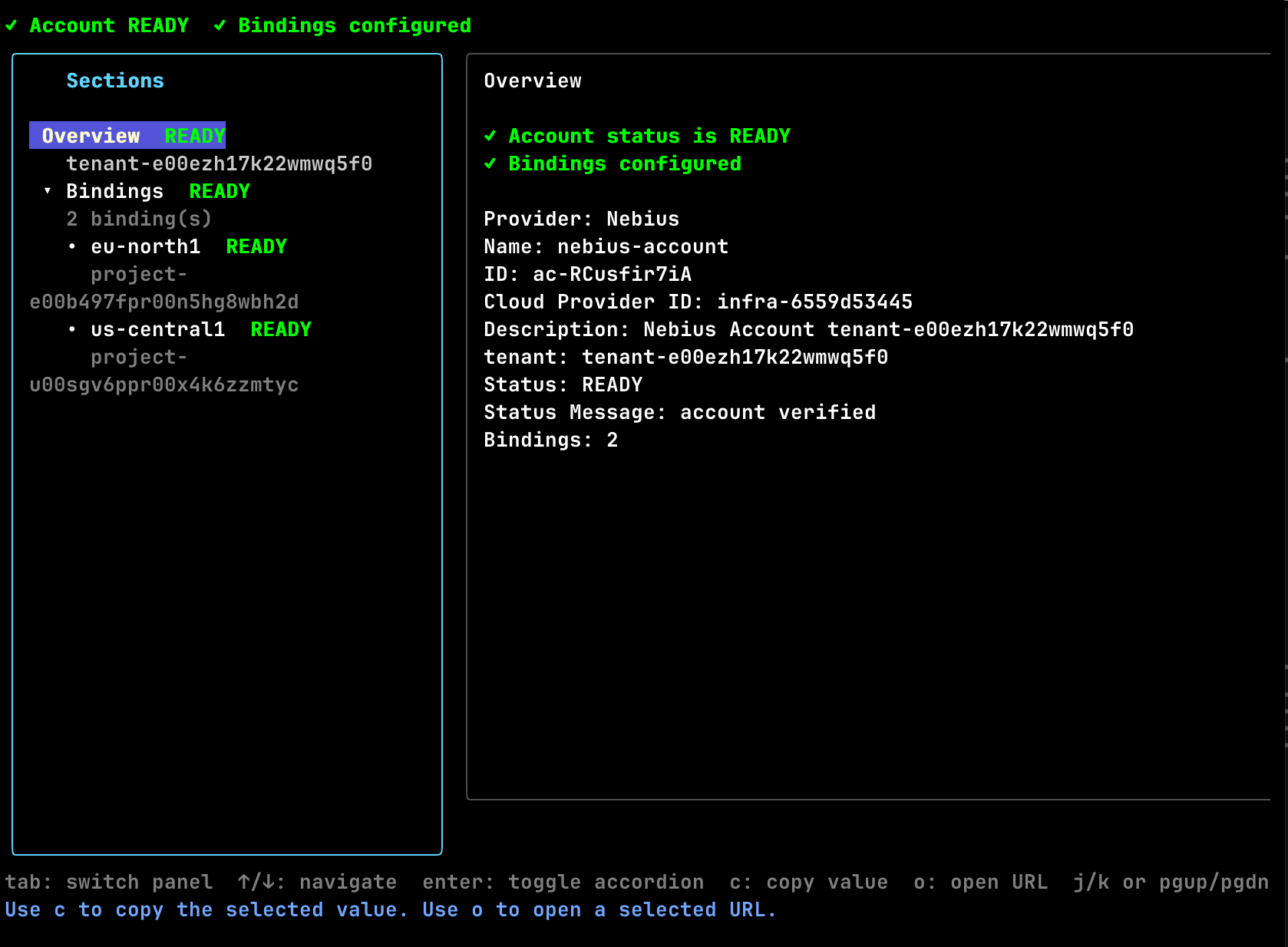
Why Nebius is different
Nebius account configs are tenant-scoped. Instead of a single account-wide identity, Omnistrate expects one or more bindings inside the account config.
A binding is the combination of:
- a Nebius project ID,
- a Nebius service account ID,
- a Nebius public key ID, and
- the matching private key PEM.
Each binding enables a specific region in your Nebius tenant for deployment after Omnistrate verifies it and confirms the service-account key belongs to the configured tenant. In practice this means:
- use one binding per Nebius project/region,
- keep all existing bindings in the file when adding a new region, and
- only deploy into regions whose bindings show
READYinaccount describe.
One binding also acts as the artifact bucket owner for the account config. Omnistrate uses that binding's project for Nebius deployment artifacts (Helm charts, Terraform files, etc.). When an account config contains more than one binding, exactly one binding must own the artifact bucket.
Prerequisites
- A Nebius tenant.
- One Nebius project for each region you want to enable.
- A human operator with enough Nebius IAM access to create service accounts and service-account authorized keys.
omnistrate-ctlinstalled and logged in.
Useful Nebius references:
Create the Nebius service account and key
Repeat this process for every Nebius project that you want to enable as a binding.
1. Create or choose the target project
Create one Nebius project per deployment region you want Omnistrate to use. Keep the project ID for the binding file.
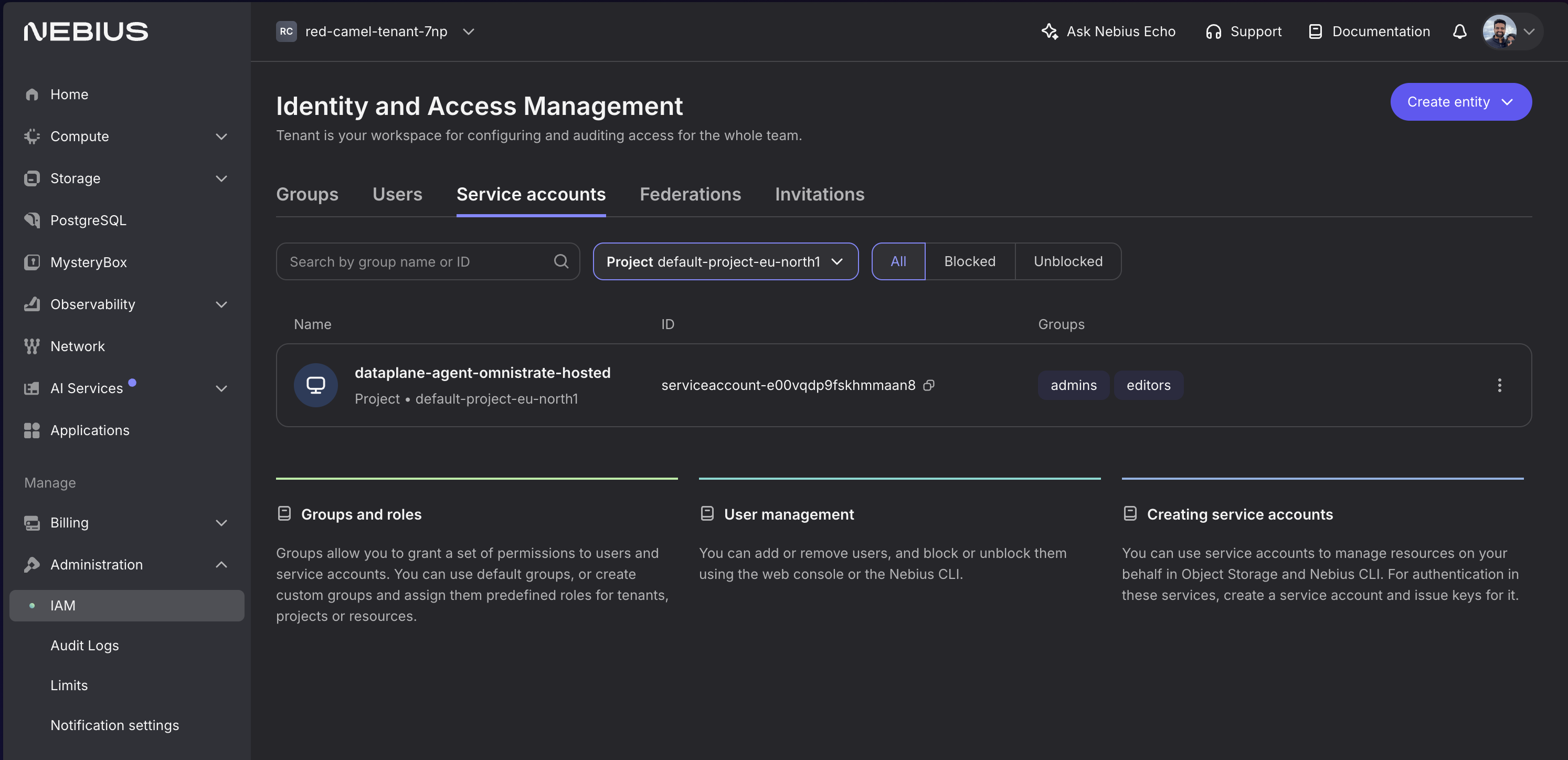
2. Create a service account in that project
In Nebius Console:
- Open the target project.
- Go to IAM or Service Accounts.
- Create a service account such as
omnistrate-eu-north1. - Save the service account ID.
3. Grant the service account project permissions
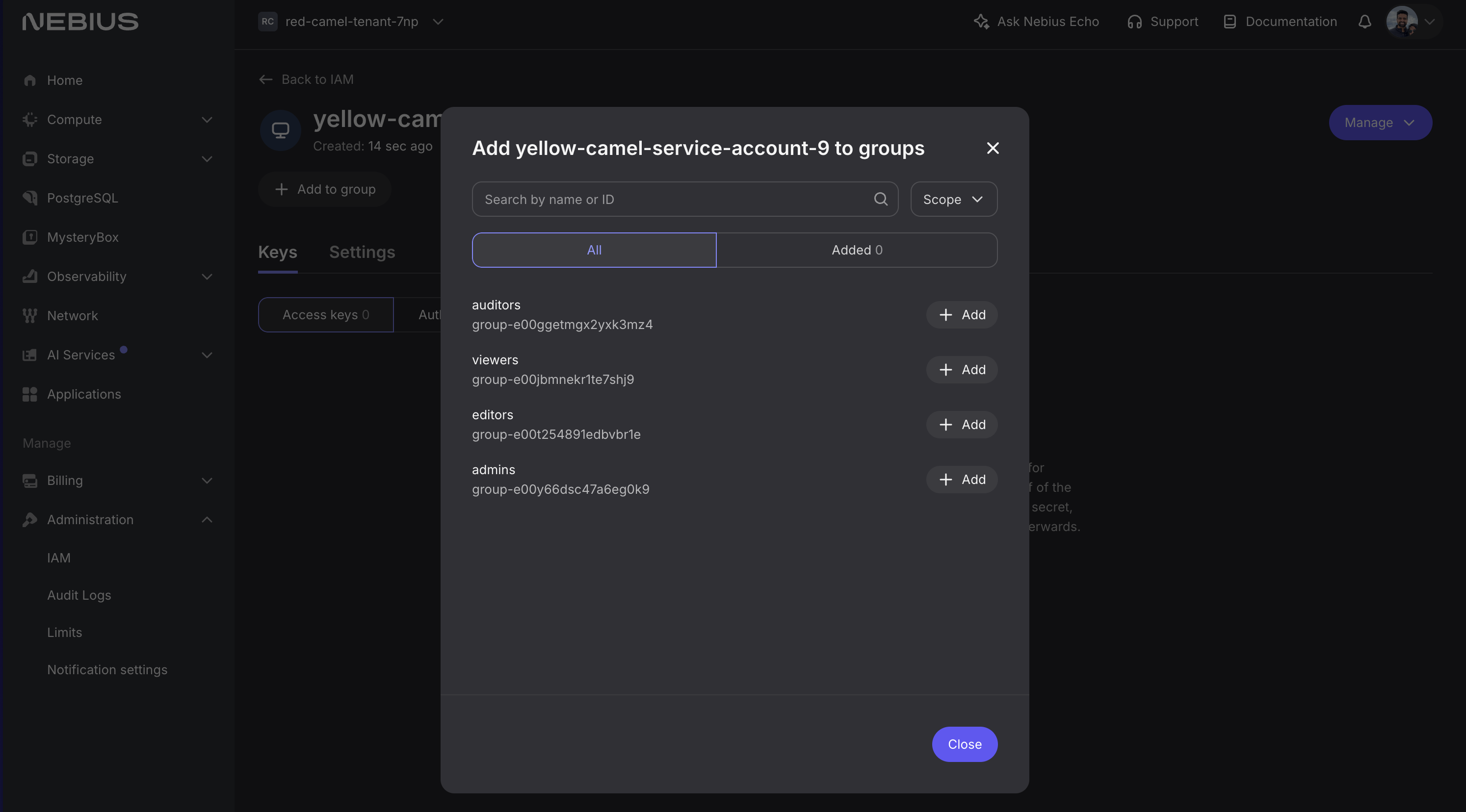
Add the service account to a project-level group or role set that can create and manage the infrastructure Omnistrate needs in that project. A project-scoped admin-style role is required to allow Omnistrate to manage your infrastructure.
4. Create an authorized key for the service account
Upload a public key and save the matching private key PEM for the binding file.
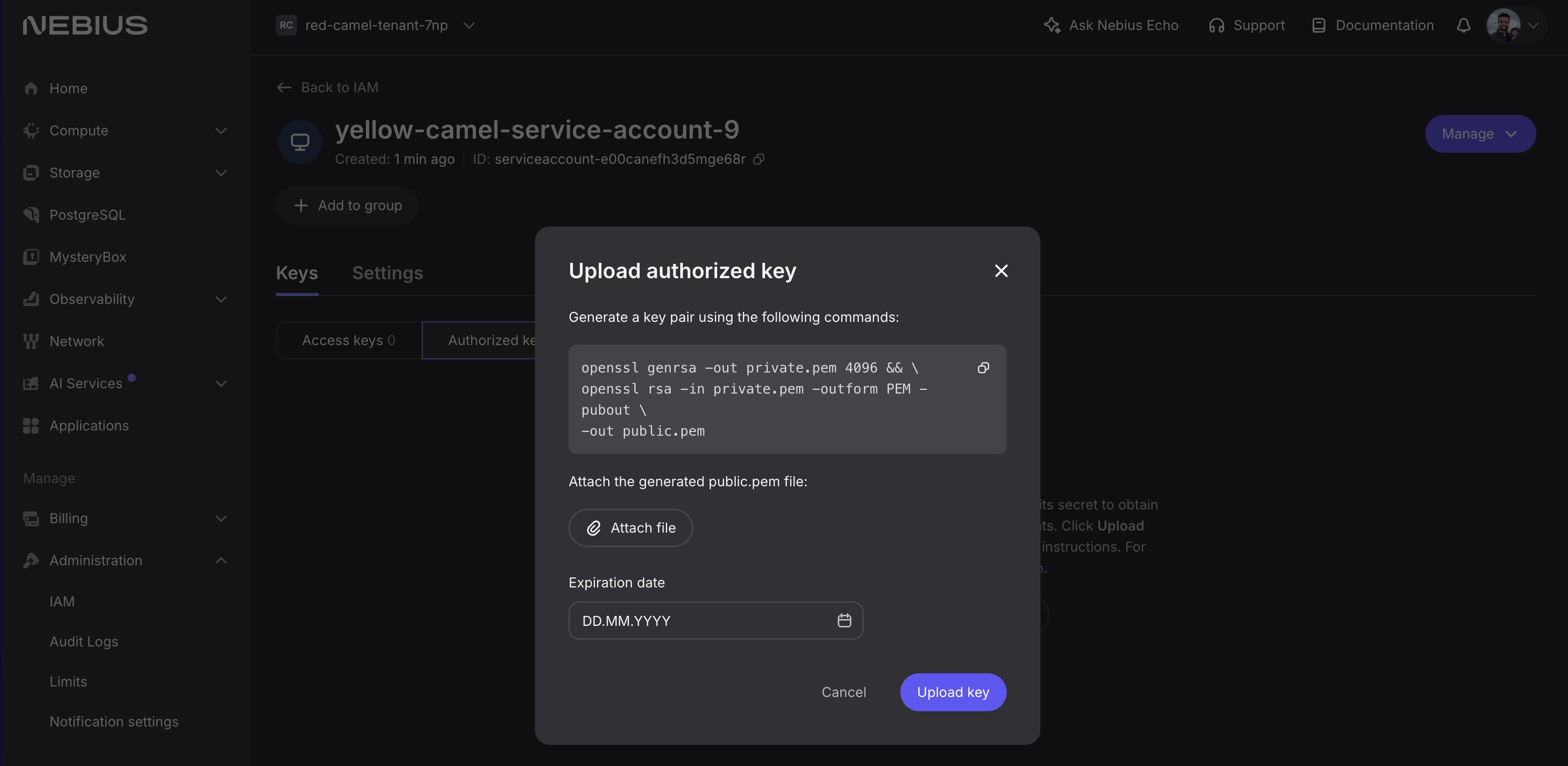
Save these values for the binding:
- project ID
- service account ID
- public key ID
- private key PEM
Warning
Treat the private key PEM like any other long-lived secret. Store it outside source control. The recommended pattern in this guide is to reference a local file from the bindings YAML.
Artifact bucket owner behavior
For Nebius, Omnistrate stores deployment artifacts in the project owned by one binding.
- On the first account onboarding, if the bindings file does not specify an owner, Omnistrate picks the first binding in the file as the artifact-bucket owner.
- On later full-replacement binding updates, Omnistrate preserves the existing artifact-bucket owner as long as that binding stays in the set.
- If you remove the current artifact-owner binding from a later update, the update is rejected because Omnistrate would no longer know which Nebius project should keep artifact ownership.
- In practice, put your most stable Nebius project first when you onboard the account for the first time.
Create the Nebius bindings file
A bindings file can carry one or more Nebius bindings. Omnistrate resolves the region during verification, so you do not specify a region in the YAML.
bindings:
  - projectID: project-e00project
    serviceAccountID: serviceaccount-e00serviceacct
    publicKeyID: publickey-e00publickey
    privateKeyPEMFile: /path/to/private-key.pem

  - projectID: project-e00anotherproject
    serviceAccountID: serviceaccount-e00anotherserviceacct
    publicKeyID: publickey-e00anotherpublickey
    privateKeyPEMFile: /path/to/another-private-key.pem
Notes:
privateKeyPEMFileis recommended.privateKeyPEMalso works if you must inline the key material.- On first onboarding, Omnistrate chooses the first binding in the file as the artifact-bucket owner.
- Keep the file as the full desired binding set. Updates replace the complete set, not just one entry.
- Keep the originally selected artifact-owner binding in later replacement files so artifact storage stays attached to the same Nebius project.
If your plan also provisions Nebius resources through Terraform, see Nebius Terraform authentication.
Hosted flow
1. Create the hosted account config
omnistrate-ctl account create nebius-hosted \
  --nebius-tenant-id tenant-id \
  --nebius-bindings-file ./nebius-bindings.yaml
Because Nebius verification is direct, you can let the command wait for READY. Add --skip-wait only if you want to return immediately.
2. Inspect binding verification
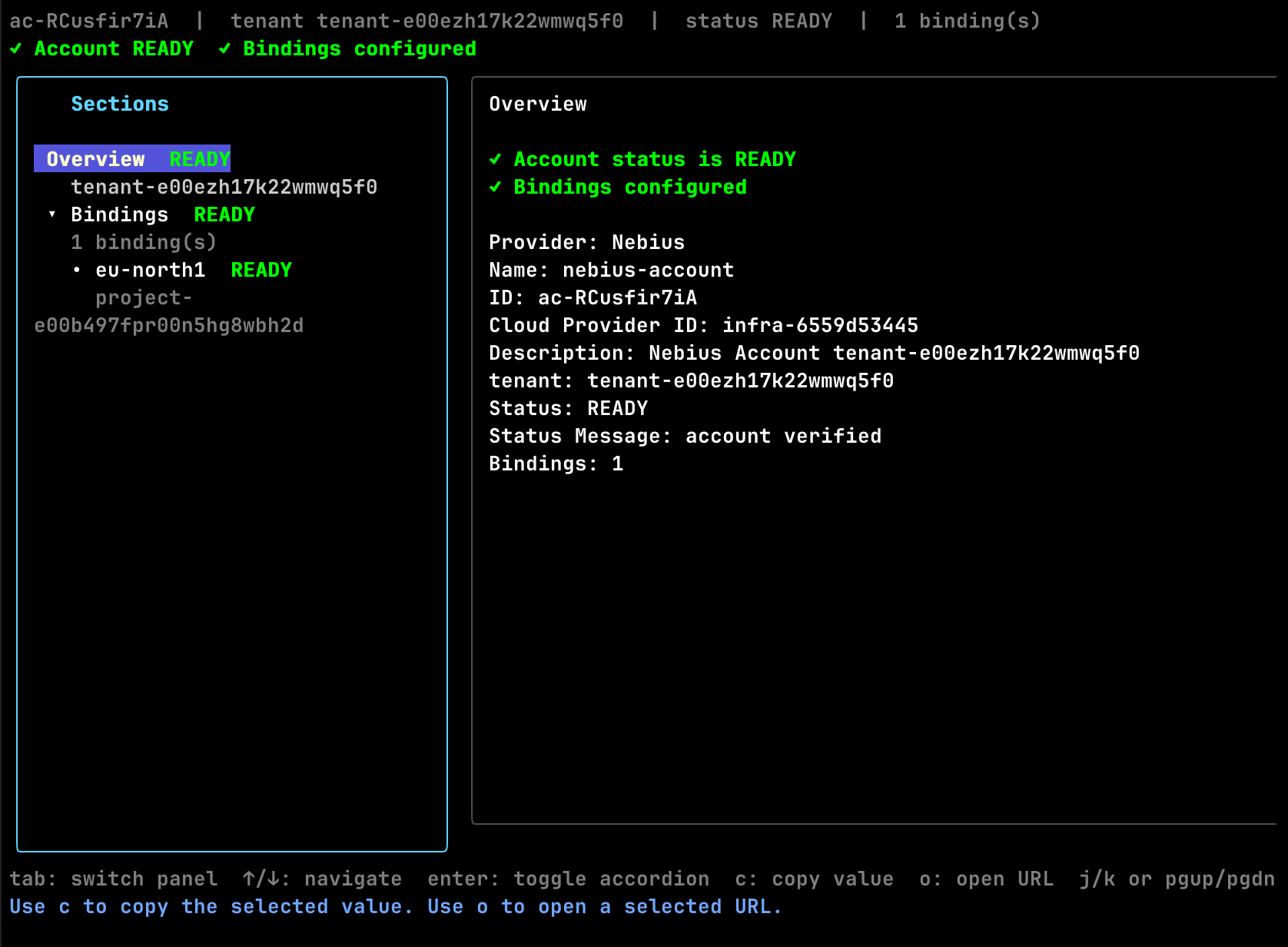
Only use regions whose bindings are READY.
3. Create the first Hosted SaaS deployment
omnistrate-ctl instance create \
  --service <service> \
  --environment <environment> \
  --plan <hosted-plan> \
  --resource <resource> \
  --cloud-provider nebius \
  --region eu-north1 \
  --param-file ./params.json
The --region value must match one of the ready binding regions surfaced by account describe.
BYOA flow
1. Create the customer onboarding instance
omnistrate-ctl account customer create \
  --service <service> \
  --environment <environment> \
  --plan <byoa-plan> \
  --nebius-tenant-id tenant-e00ezh17k22wmwq5f0 \
  --nebius-bindings-file ./nebius-bindings.yaml
The command uses the calling user's subscription by default. If you need to onboard on behalf of another production subscription, add either --subscription-id <subscription-id> or --customer-email <email>.
2. Verify the customer onboarding instance
omnistrate-ctl account customer list --cloud-provider nebius
omnistrate-ctl account customer describe <customer-account-instance-id>
omnistrate-ctl account customer describe <customer-account-instance-id> -o json
Use the JSON output if you want the backing accountConfigID and the raw Nebius binding verification details.
3. Create the BYOA deployment
omnistrate-ctl instance create \
  --service <service> \
  --environment <environment> \
  --plan <byoa-plan> \
  --resource <resource> \
  --cloud-provider nebius \
  --region eu-north1 \
  --customer-account-id <customer-account-instance-id> \
  --param-file ./params.json
For BYOA plans, --customer-account-id is the onboarding instance ID returned by account customer create.
Author Nebius plans
Nebius compute options
services:
  - name: vllm
    compute:
      instanceTypes:
        - name: 8gpu-128vcpu-1600gb
          cloudProvider: nebius
          platform: gpu-h100-sxm
          configurationOverrides:
            GpuClusterID: computegpucluster-e00abcxfadyhcvpkdx
Notes:
- The instance type
nameis the Nebius preset. If you useapiParaminstead, that parameter must resolve to a Nebius preset at deploy time. platformis required on Nebius instance-type entries.configurationOverrides.GpuClusterIDis optional and Nebius-only. Use it when the preset must land in a specific Nebius GPU cluster.- Nebius GPU cluster placement is validated against the selected
platformand preset.
Nebius shared file systems
Nebius plans can also use Omnistrate-managed shared file systems.
In compose-based plans:
- define the shared volume with
driver: sharedFileSystem, - put the Nebius backend config on the root volume
driver_opts, - and reference the matching Nebius
clusterStorageTypein each mounted Resource.
Example:
volumes:
  shared_models:
    driver: sharedFileSystem
    driver_opts:
      nebiusFilesystemType: NETWORK_SSD
      nebiusFilesystemSizeGi: 1024

services:
  api:
    volumes:
      - source: shared_models
        target: /models
        type: volume
        x-omnistrate-storage:
          nebius:
            clusterStorageType: NEBIUS::FILESYSTEM_NETWORK_SSD
Supported Nebius backend mappings:
NETWORK_SSD->NEBIUS::FILESYSTEM_NETWORK_SSDNETWORK_HDD->NEBIUS::FILESYSTEM_NETWORK_HDDWEKA->NEBIUS::FILESYSTEM_WEKAVAST->NEBIUS::FILESYSTEM_VAST
Notes:
- The filesystem size and backend type live on the shared volume
driver_opts, not on the per-resource mount block. - Omnistrate rejects Nebius shared file systems for
OMNISTRATE_MULTI_TENANCYplans. Use Nebius dedicated or custom tenancy instead. - See Shared File System and Compose Spec for the full schema.
Nebius Terraform authentication
terraformConfigurations:
  configurationPerCloudProvider:
    nebius:
      terraformPath: /terraform/nebius
      serviceAccountID: serviceaccount-e00vqdp9fskhmmaan8
      publicKeyID: publickey-e00h9scsyy9mbefrjf
      privateKeyPEM: $secret.nebiusTerraformPrivateKey
      gitConfiguration:
        reference: refs/heads/main
        repositoryUrl: https://github.com/your-org/infra-repo.git
Notes:
- Prefer
$secret.<name>forprivateKeyPEM; Omnistrate resolves the secret before running Terraform. - When these fields are present, Omnistrate uses this service-account key for the Terraform resource instead of the default host-cluster Terraform identity.
- See Building your SaaS Product using Terraform and Plan Spec for the full schema.
Add a new region later
To enable another Nebius region, create another project-level binding and replace the full bindings file.
Hosted account update
BYOA backing account update
omnistrate-ctl account customer update <customer-account-instance-id> \
  --nebius-bindings-file ./nebius-bindings.yaml
After the update completes:
- Rerun
account describeoraccount customer describe. - Confirm the new binding reaches
READY. - Start deploying into the newly discovered region.
Warning
Nebius binding updates are full replacements. If your current file has two working bindings and you add a third, keep all three in the replacement file.
Warning
The binding that was first in your original onboarding file becomes the artifact-bucket owner. Keep that binding in later replacement files unless you are intentionally migrating Nebius artifact storage.
Example: Deploy vLLM on Nebius
Use this example if you want to publish a Nebius-hosted vLLM service plan with omctl, create a GPU-backed instance, expose the model over the Omnistrate-managed DNS endpoint, and use that endpoint from Opencode.
Complete the Nebius account setup described above before running this example.
- model:
Jackrong/Qwen3.5-27B-Claude-4.6-Opus-Reasoning-Distilled - served model alias:
qwen3.5-27b-claude-4.6-opus-reasoning-distilled - tokenizer override:
Qwen/Qwen3.5-27B - public OpenAI-compatible vLLM API over HTTPS on the Omnistrate-managed DNS endpoint
- tool-calling enabled so Opencode can use
/v1/chat/completions - Omnistrate dashboards for both vLLM metrics and NVIDIA GPU metrics
1. Choose the spec
Clone the example from https://github.com/omnistrate-community/nebius-vllm-demo.
The repository contains two variants:
spec.yaml: single-node Nebius deployment on a single H200 GPUspec-gpu-cluster.yaml: multi-GPU Nebius GPU-cluster deployment on H200 with tensor parallelism enabled
Use spec.yaml if you want the simplest path for Opencode.
Use spec-gpu-cluster.yaml only if you already have a Nebius GPU cluster and want to run the same model with 8 GPUs. Before building that spec, replace the placeholder GpuClusterID: compute-cluster-id with your real Nebius GPU cluster ID.
2. Build and release the service plan
Run the build from the directory that contains the spec you want to publish.
Single-GPU example:
omctl build -f spec.yaml \
  --product-name 'Nebius' \
  --spec-type ServicePlanSpec \
  --release-as-preferred
GPU-cluster example:
omctl build -f spec-gpu-cluster.yaml \
  --product-name 'Nebius' \
  --spec-type ServicePlanSpec \
  --release-as-preferred

╭─────────────────────────────────────────────────────────────────────────────────────────────────────────────────────────────────────────────────╮
│ environment  plan_id        plan_name                  release_description          service_id    service_name      version  version_set_status │
│─────────────────────────────────────────────────────────────────────────────────────────────────────────────────────────────────────────────────│
│ Dev          pt-VRWPNLImF0  Nebius vLLM GPU Inference  Initial Release Version Set  s-GuWdEcfcP5  Nebius vLLM Demo  1.0      Preferred          │
╰─────────────────────────────────────────────────────────────────────────────────────────────────────────────────────────────────────────────────╯
Check the service plan result at: https://omnistrate.cloud/product-tier?serviceId=s-GuWdEcfcP5&environmentId=se-BGBkF9Nwqq
Access your SaaS offer at: https://saasportal.instance-w6vidhd14.hc-pelsk80ph.us-east-2.aws.f2e0a955bb84.cloud/service-plans?serviceId=s-GuWdEcfcP5&environmentId=se-BGBkF9Nwqq
This creates or updates the service named Nebius and releases the plan version as the preferred version in the target environment. In this example, the plan name inside the spec is Nebius vLLM GPU Inference.
3. Create a Nebius vLLM instance
Once the plan is released, create an instance in a region backed by a READY Nebius binding.
omctl instance create \
  --service=Nebius \
  --environment=dev \
  --plan='Nebius vLLM GPU Inference' \
  --resource=vllm \
  --cloud-provider=nebius \
  --region=<ready-nebius-region>

╭────────────────────────────────────────────────────────────────────────────────────────────────────────────────────────────────────────────────────────────────╮
│ cloud_provider  environment  instance_id         plan                       region       resource  service           status     subscription_id  tags  version │
│────────────────────────────────────────────────────────────────────────────────────────────────────────────────────────────────────────────────────────────────│
│ nebius          Dev          <instance-id>       Nebius vLLM GPU Inference  us-central1  vllm      Nebius vLLM Demo  DEPLOYING  sub-6OR7umU3Ei         1.0     │
╰────────────────────────────────────────────────────────────────────────────────────────────────────────────────────────────────────────────────────────────────╯
If you are using a BYOA plan instead of a hosted plan, add --customer-account-id <customer-account-instance-id> to the create command.
Keep the returned instance ID. You will use it to inspect the endpoint, configure Opencode, and later delete the deployment.
If this is the first deployment in that Nebius tenant and region, expect the initial infrastructure bring-up to take longer than a normal redeploy.
You can track the instance status with:
omctl instance describe <instance-id>

# Filter using jq
omctl instance describe <instance-id> | jq '.consumptionResourceInstanceResult.status'
"RUNNING"
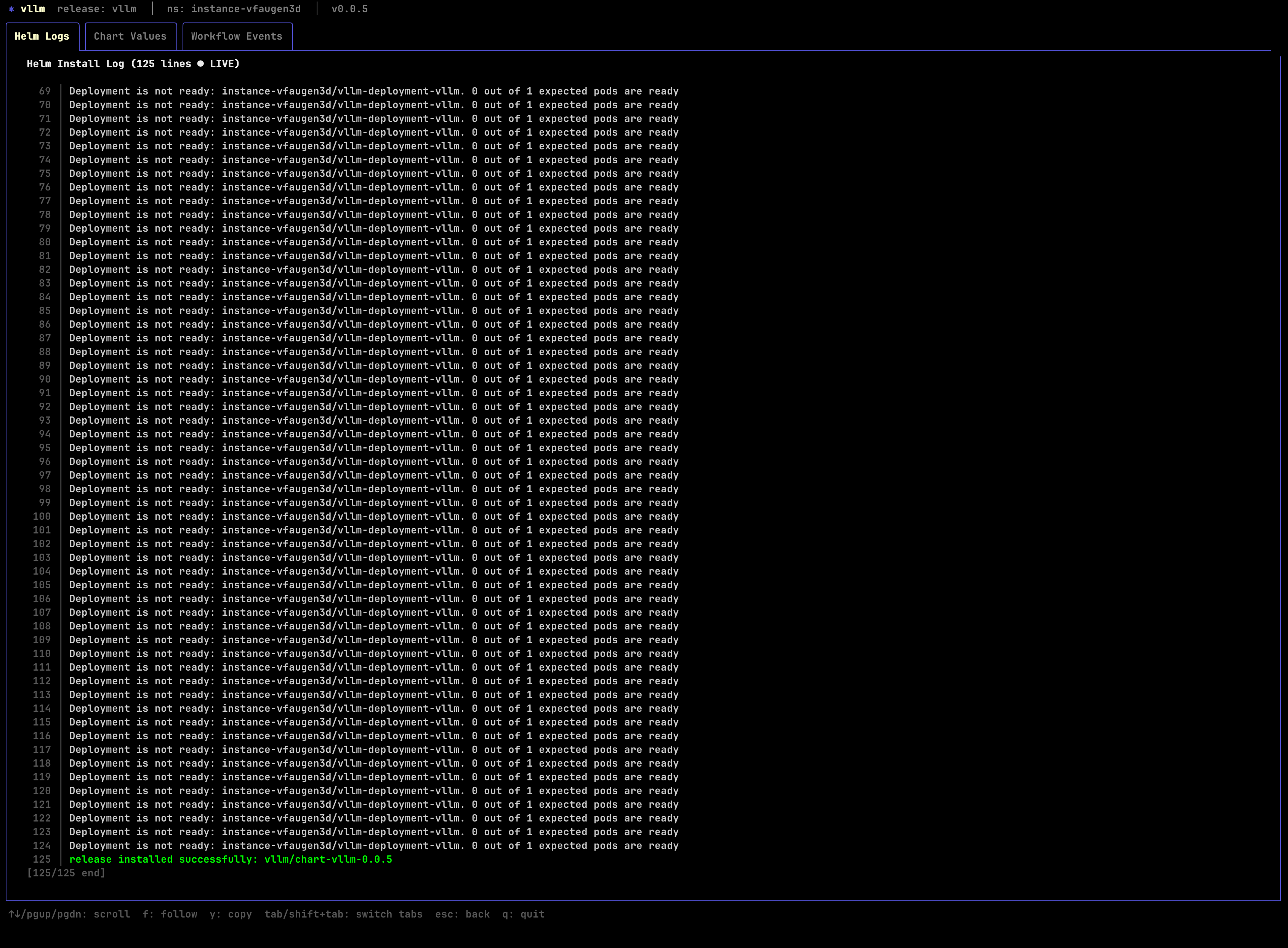
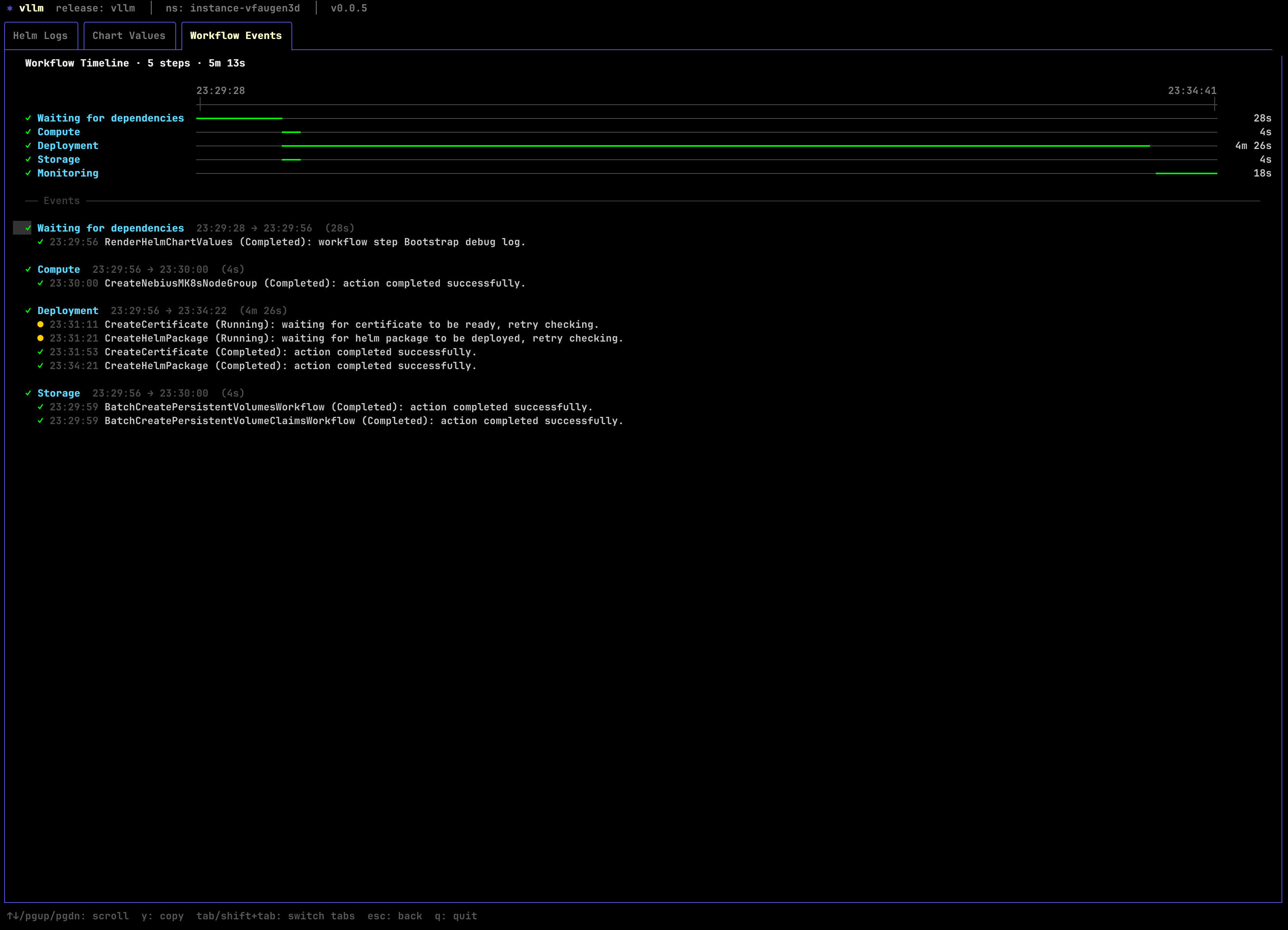
If something is not progressing, inspect the deployment with:
4. Get the generated inference endpoint
List the instance endpoints:
omctl instance list-endpoints <instance-id>

╭───────────────────────────────────────────────────────────────────────────────────────────────────────────────────────────────────────────────────────────────╮
│ endpoint_name  endpoint_type  network_type  ports  resource_name  status   url                                                                                │
│───────────────────────────────────────────────────────────────────────────────────────────────────────────────────────────────────────────────────────────────│
│ api            additional     PUBLIC        443    vllm           HEALTHY  r-o3davudsia.<instance-id>.hc-xyxgpfjol.us-central1.nebius.f2e0a955bb84.cloud      │
╰───────────────────────────────────────────────────────────────────────────────────────────────────────────────────────────────────────────────────────────────╯
You should see a public api endpoint pointing at the Omnistrate-managed DNS name for the vLLM service.
5. Verify the endpoint before wiring in Opencode
Health check:
List the served models:
You should see the served model ID:
Run a basic chat completion:
curl -sS \
  -H 'Content-Type: application/json' \
  -d '{
    "model": "qwen3.5-27b-claude-4.6-opus-reasoning-distilled",
    "messages": [
      {
        "role": "user",
        "content": "Write a Python function that reverses a linked list."
      }
    ],
    "max_tokens": 512,
    "temperature": 0
  }' \
  https://<endpoint>/v1/chat/completions
Because Opencode uses tool-enabled OpenAI-compatible chat requests, it is worth verifying tool calling too:
curl -sS \
  -H 'Content-Type: application/json' \
  -d '{
    "model": "qwen3.5-27b-claude-4.6-opus-reasoning-distilled",
    "messages": [
      {
        "role": "user",
        "content": "What is 2 + 2? Use the tool if needed."
      }
    ],
    "tools": [
      {
        "type": "function",
        "function": {
          "name": "echo",
          "description": "Echo the provided text",
          "parameters": {
            "type": "object",
            "properties": {
              "text": {
                "type": "string"
              }
            },
            "required": ["text"]
          }
        }
      }
    ],
    "tool_choice": "auto",
    "max_tokens": 256
  }' \
  https://<endpoint>/v1/chat/completions
The shipped spec already enables the vLLM flags required for this flow, including --enable-auto-tool-choice, --tool-call-parser qwen3_coder, and --reasoning-parser qwen3.
If this request returns a 400 complaining that auto tool choice is not enabled, the instance is still running an older plan version or an older chart release.
6. Configure Opencode
Point Opencode at the Nebius vLLM endpoint by editing ~/.config/opencode/opencode.json.
{
  "$schema": "https://opencode.ai/config.json",
  "provider": {
    "nebius-vllm": {
      "npm": "@ai-sdk/openai-compatible",
      "name": "Nebius vLLM Qwen 3.5 Distilled",
      "options": {
        "baseURL": "https://<endpoint>/v1"
      },
      "models": {
        "qwen3.5-27b-claude-4.6-opus-reasoning-distilled": {
          "name": "qwen3.5-27b-claude-4.6-opus-reasoning-distilled"
        }
      }
    }
  }
}
Notes:
- Replace
<endpoint>with the DNS name returned byomctl instance list-endpoints. - Do not append
:443or:8000; the ingress already exposes the service over HTTPS on the default port. - If your endpoint requires authentication, add
options.apiKeyoroptions.headers. - If you want Opencode to understand model limits more precisely, add a
limitblock under the model entry.
After saving the config, start Opencode and run:
Select:
- provider:
nebius-vllm - model:
qwen3.5-27b-claude-4.6-opus-reasoning-distilled
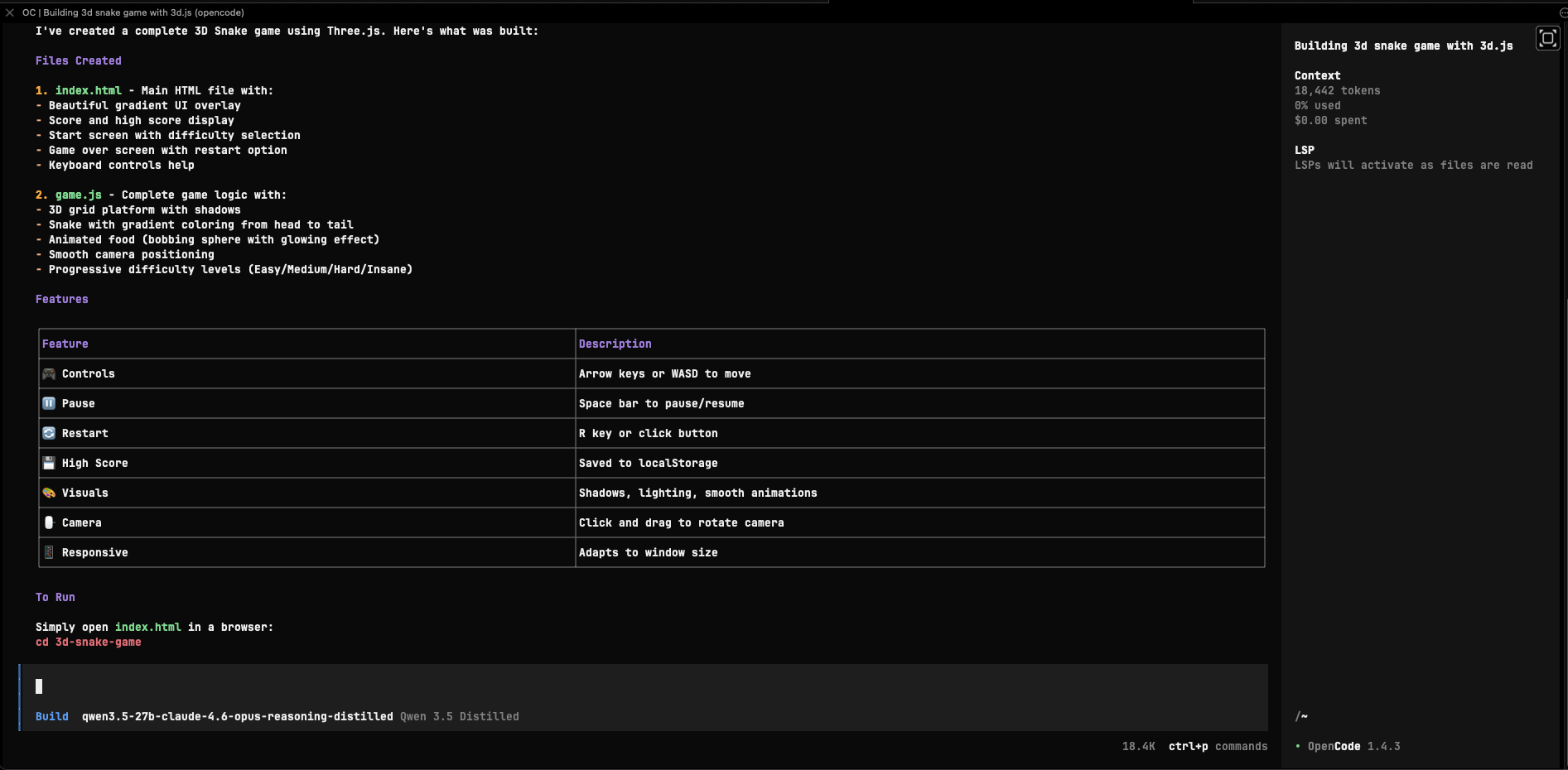
At that point Opencode will use your Nebius-hosted vLLM endpoint for chat and tool-enabled coding requests.
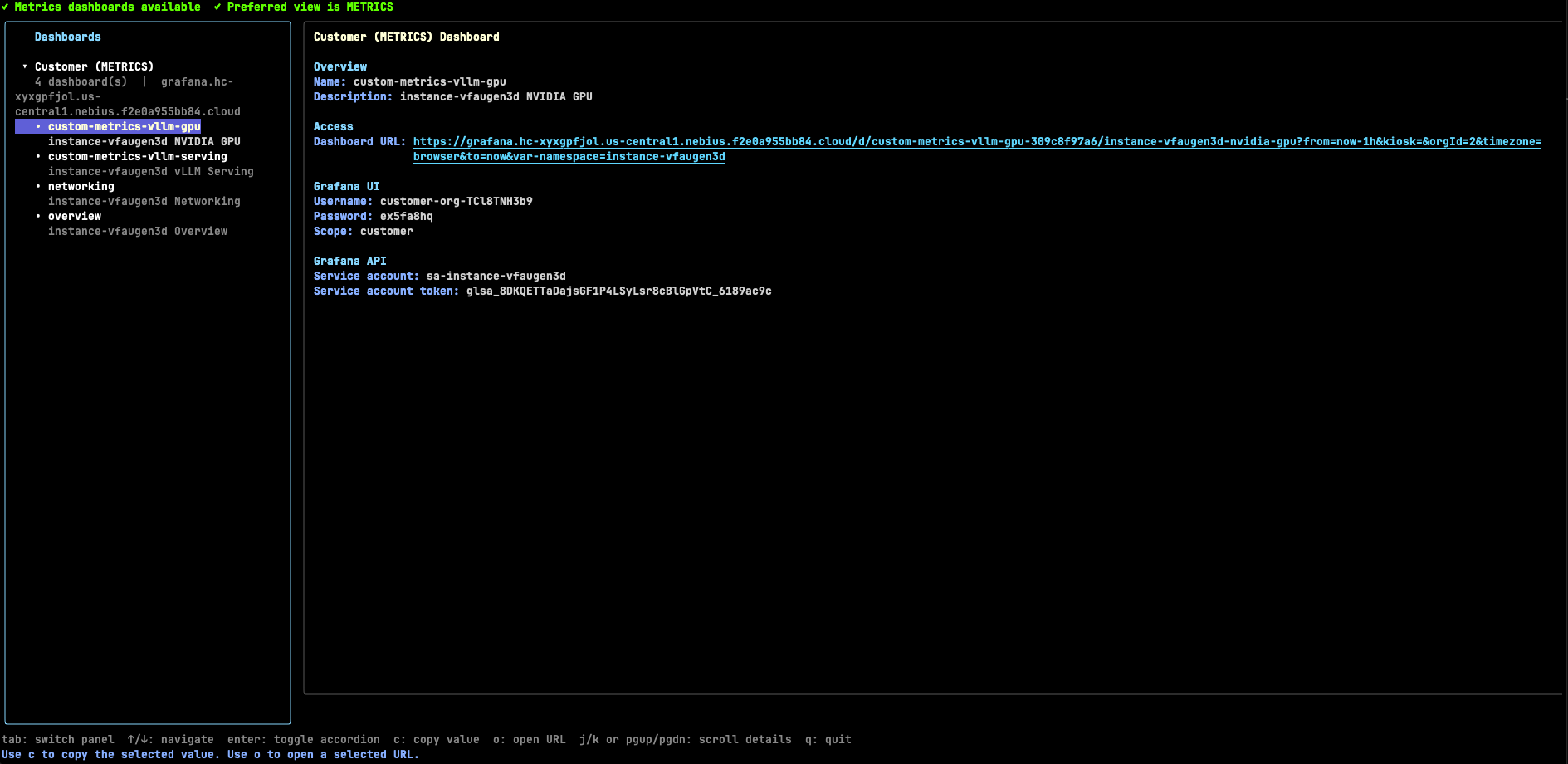
7. Inspect the Omnistrate dashboards
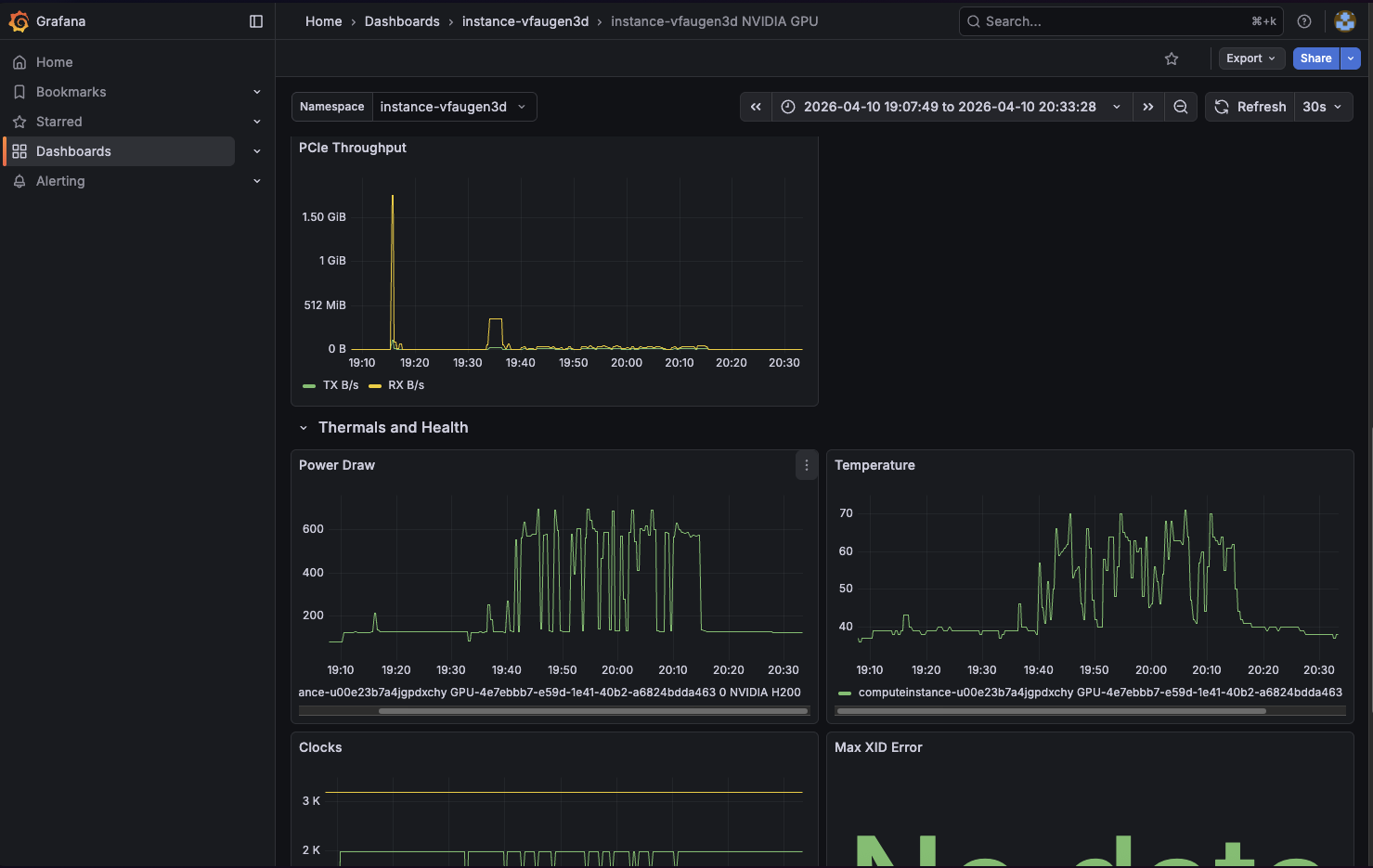
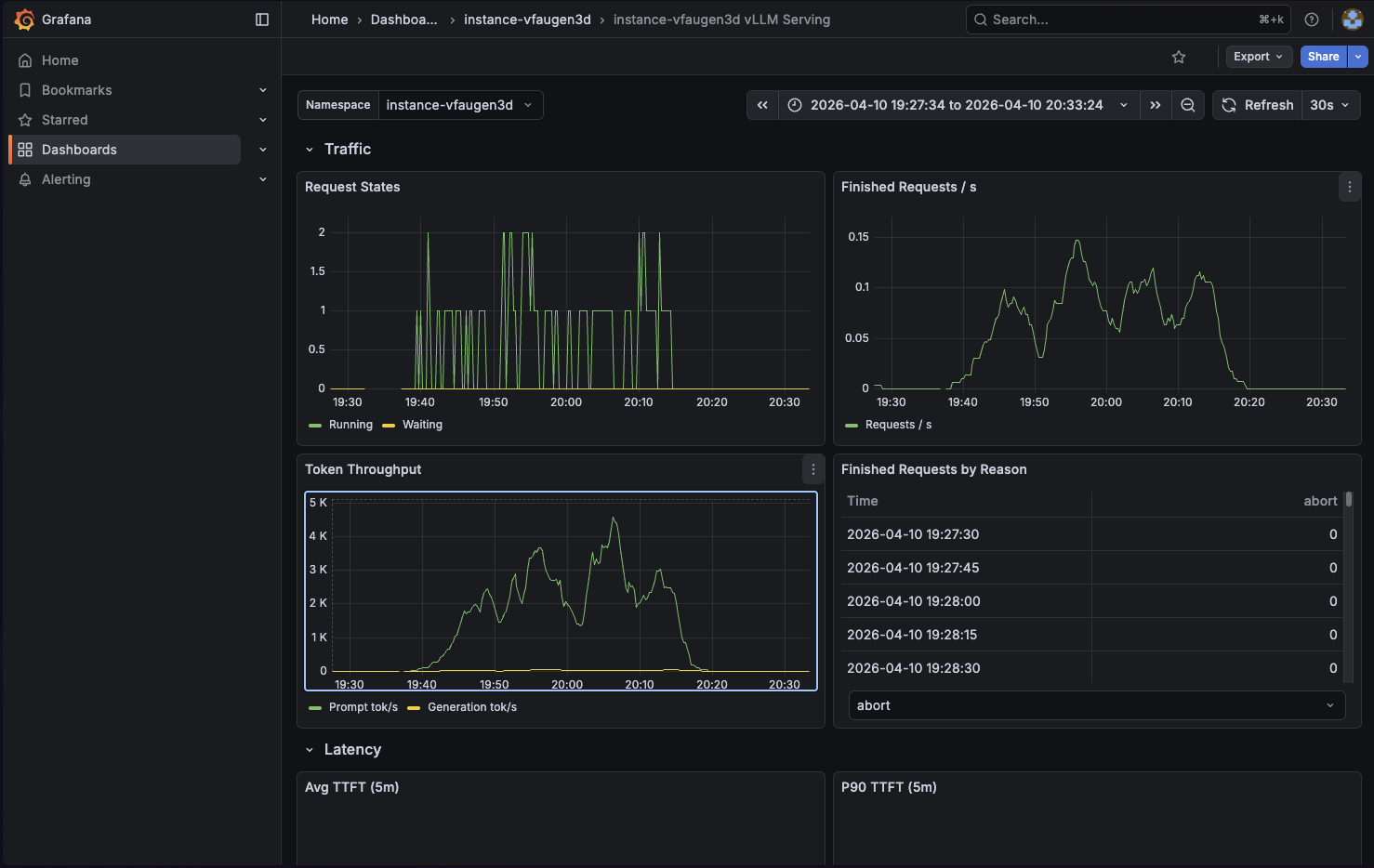
This example includes Omnistrate dashboard integrations for both vLLM and NVIDIA GPU telemetry.
Open the dashboards with:
Out of the box, the dashboards expose:
- vLLM request concurrency, throughput, latency, KV cache usage, and prefix cache hit rate
- NVIDIA GPU inventory, utilization, framebuffer usage, PCIe throughput, thermals, power, and error signals
8. Delete the instance
Delete the deployment when you are finished:
Add -y if you want to skip the confirmation prompt:
Delete and offboard
Useful lifecycle commands:
# List all Nebius customer onboarding instances
omnistrate-ctl account customer list --cloud-provider nebius

# Delete a customer onboarding instance
omnistrate-ctl account customer delete <customer-account-instance-id>
For the offboarding order and cleanup rules, follow Account Offboarding.